Video Preprocessing
Correctly formatting the video input is the most critical step for using the Direct API. Unlike high-level video platforms, the VitalLens API does not accept arbitrary video files (like MP4s) directly. It expects a pre-calculated, highly compressed tensor.
The Goal
The API expects a Base64-encoded string representing a raw tensor of shape (frames, 40, 40, 3).
To get there from a standard video file, you must perform three specific operations in order:
- Crop the Region of Interest (ROI).
- Scale the ROI to exactly 40x40 pixels.
- Encode the pixel data as raw RGB bytes.
Step 1: Cropping
First, you must define a Region of Interest (ROI) that contains the subject.
The Ideal Crop
The crop should center on the face but must extend downwards to include the upper chest and shoulders.
- Face: Provides the strongest rPPG signal (blood volume changes) for Heart Rate and HRV.
- Upper Chest: Provides subtle motion cues required for Respiratory Rate.
Example Values
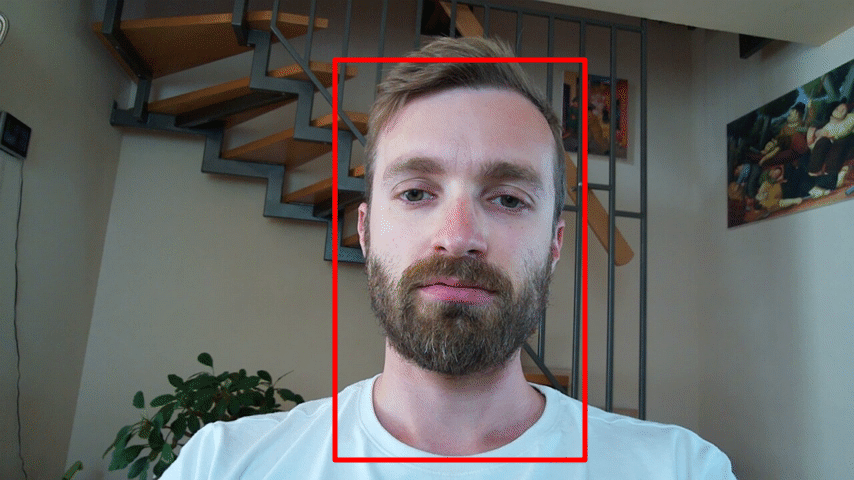
For our sample video, the recommended crop is:
- Width: 250px
- Height: 400px
- X-Coordinate: 335
- Y-Coordinate: 60
Common Errors
- No Cropping: Sending the full wide-angle frame means the face is only a few pixels wide after resizing. The signal will be weak and accuracy low.
- Face-Only Crop: Cropping tightly around the chin excludes the upper torso. This degrades Respiratory Rate accuracy, as the model cannot "see" the breathing motion.
Step 2: Scaling
Once you have your crop, you must resize it to exactly 40x40 pixels.
How to Scale
You must use a standard interpolation method (like bilinear or bicubic) to resize the image. This compresses the visual information of the entire face/chest area into the small 40x40 grid.
Common Errors
- Tiling: A frequent mistake is taking a 40x40 pixel "patch" from the center of the face and discarding the rest. This removes 90% of the signal. The API needs the entire ROI compressed, not a cutout.
- Padding: Do not "letterbox" or pad the image with black bars to make it square. This introduces artificial edges that confuse the model.
- Bad Algorithms: Avoid "Nearest Neighbor" scaling if possible, as it can introduce aliasing artifacts that look like pulse signal noise.
Step 3: Encoding
Finally, you must convert the pixel data into a format the API can parse.
The Format
The API requires Raw RGB24 bytes.
- Color Space: RGB (3 channels).
- Pixel Format:
uint8(values 0-255). - Serialization: Concatenate the bytes of every frame and encode the result as a standard Base64 string.
Common Errors
Common Errors
- BGR Color Space: Libraries like OpenCV (
cv2.imread) default to BGR. If you send BGR data, the model will see blue skin and orange lips, resulting in garbage vital signs. - Float Normalization: Do not divide pixel values by 255. The API expects integers (e.g.,
255), not floats (e.g.,1.0). - 4-Channel Images: Do not send RGBA or BGRA data. The alpha channel changes the byte alignment and breaks the reshaping logic (causing 422 errors).
Verification (Sanity Check)
Because the processing happens blindly on the server, we strongly recommend verifying your payload locally before sending it.
You can run this command to extract the video from your JSON payload and save the first frame as an image. This lets you see what the API sees.
Command
# Requires: jq, base64, ffmpeg
jq -r .video payload.json | base64 -d | \
ffmpeg -f rawvideo -pixel_format rgb24 -video_size 40x40 \
-i - -frames:v 1 -vf "scale=400:400:flags=neighbor" -y sanity_check.png
Result
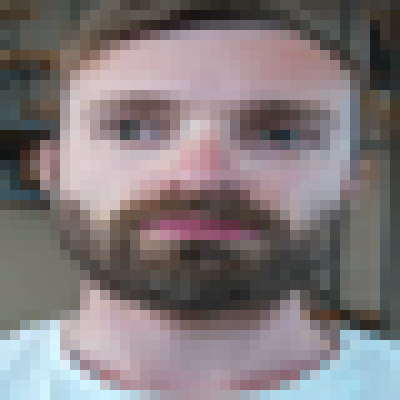
If your preprocessing is correct, sanity_check.png should look like the image below (pixelated, but recognizable).
What to Look For
 Correct: A single, pixelated face and upper chest filling the square. Colors look natural.
 Blue/Orange Skin: You sent BGR data. Convert to RGB.
- Grid of Faces: You tiled the image instead of scaling it.
- Black Bars: You padded the image instead of scaling or cropping correctly.
- Slanted/Skewed: You likely sent the wrong resolution or extra bytes (like an Alpha channel).